

Harnessing the Power of Mapsly and Dynamics 365
In today's interconnected business landscape, seamless integration between different systems is crucial for optimizing operations and maximizing efficiency. Microsoft Dynamics 365 offers powerful integration capabilities that can be leveraged to enhance your organization's productivity and decision-making. One such valuable integration is with Mapsly, a leading mapping and location intelligence platform.

The Benefits of Integrating Dynamics 365 and Mapsly
By integrating Dynamics 365 with Mapsly, you can unlock a range of benefits, including:
- Enhanced Visualization: Mapsly's intuitive mapping interface provides a visual representation of your data, making it easier to understand and analyze.
- Improved Decision-Making: Mapsly's location intelligence capabilities enable you to make data-driven decisions based on spatial analysis and visualization.
- Optimized Field Operations: For organizations with field-based operations, Mapsly can help you optimize routes, track technicians, and improve customer service.

Leveraging the Loop Tool for Targeted Analysis
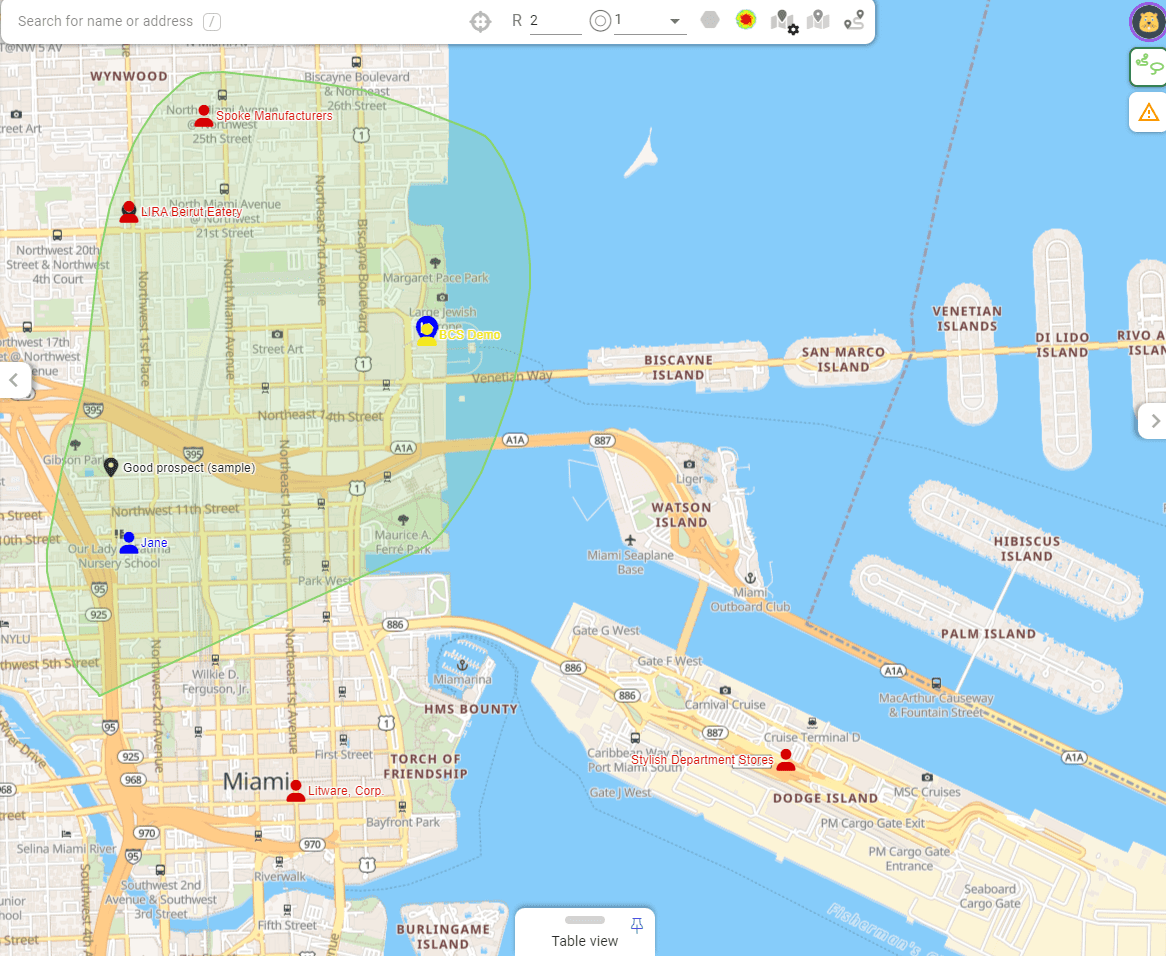
One of the standout features of Mapsly is the Loop tool. This powerful tool allows you to trace an area on the map, highlighting key addresses or locations. This is particularly useful for:
- Territory Management: Visualizing sales territories and identifying areas with high potential.
- Route Optimization: Planning the most efficient routes for field technicians, reducing travel time and costs.
- Customer Analysis: Analyzing customer distribution and identifying areas with high customer concentration.
Key Use Cases
The integration of Dynamics 365 and Mapsly can be beneficial for a variety of organizations, including:
- Field Service Companies: Optimize technician scheduling, track service requests, and improve customer satisfaction.
- Retail Businesses: Analyze customer location data to optimize store locations and marketing campaigns.
- Logistics Companies: Optimize delivery routes, track shipments, and improve supply chain efficiency.
- Government Agencies: Analyze geographic data for urban planning, resource allocation, and emergency response.
Conclusion
By integrating Dynamics 365 with Mapsly, you can unlock the power of location intelligence and gain valuable insights into your business operations. This integration can help you optimize processes, improve decision-making, and enhance customer satisfaction.
To learn more about how Dynamics 365 and Mapsly can benefit your organization, contact us today at Sales@BondConsultingServices.com or click here to schedule a free consultation with one of our Dynamics experts. Alternatively, you can always visit our YouTube Channel for helpful product videos and recorded webinars.


Secure Score from Microsoft Defender
Microsoft Defender's Secure Score is a valuable tool that provides a holistic assessment of your organization's security posture. Defender reviews your tenant and is able to recommend actions in a user-friendly dashboard. By understanding the various factors that contribute to your Secure Score, you can improve your organization's overall security.
Key Security Areas:
The Secure Score evaluates your organization's performance across several critical security areas, including:
- Identity and Access Management: This includes policies related to multi-factor authentication, password management, and privileged access management.
- Device Management: This area assesses your organization's practices for managing devices and ensuring their security.
- Application Control: This covers policies related to application whitelisting and control.
- Data Protection: This includes data loss prevention measures and encryption practices.
- Threat Protection: This evaluates your organization's ability to detect and respond to threats, such as phishing attacks and malware.

Improving Your Secure Score:
Microsoft Defender offers multiple recommendations to help increase your Secure Score. These recommendations come in a user-friendly dashboard with clear directions on how to implement each suggestion. Some suggestions may not apply or be best for your company, so it is important to review each recommendation to assess its relative value. By implementing recommended security measures and focusing on key improvement areas, you can significantly improve your Secure Score and strengthen your organization's overall security posture.
Remember: The Secure Score is a dynamic metric that reflects your ongoing security efforts. Continuously monitor your score and take proactive steps to address any identified vulnerabilities.
For more information about cybersecurity for Dynamics 365 feel free to reach out on our website or schedule a free consultation by clicking here. Alternatively, you can always visit our YouTube channel for helpful Dynamics product videos and recorded webinars.

Unleashing the Power of Dynamics 365 Business Central and Field Service Integration
In today's interconnected business landscape, seamless integration between different systems is crucial for optimizing operations and maximizing efficiency. Dynamics 365 Business Central and Dynamics 365 Field Service are two powerful solutions that, when integrated, can provide significant benefits for organizations across various industries.
Key Integration Benefits
- Enhanced Visibility: Integrating Business Central and Field Service offers a comprehensive view of your entire business, from back-office operations to field service activities. This visibility enables better decision-making, resource allocation, and overall operational efficiency.
- Streamlined Workflows: By automating data exchange and reducing manual tasks, integration can streamline workflows, leading to improved productivity and reduced errors.
- Improved Customer Experience: Integrating field service data with back-office systems allows you to provide customers with real-time updates on service requests, technician locations, and estimated arrival times. This enhances customer satisfaction and loyalty.
- Optimized Resource Management: Integration enables better resource allocation and scheduling, ensuring that technicians are dispatched to the right locations at the right time. This maximizes efficiency and minimizes costs.
- Improved Financial Management: Integrating field service data with your accounting system provides a more accurate and complete view of your finances, enabling better financial decision-making.
Integration Capabilities
Dynamics 365 Business Central and Field Service offer a wide range of integration capabilities, including:
- Data Synchronization: Seamlessly synchronize data between the two systems, ensuring consistency and accuracy.
- Workflow Automation: Automate workflows to streamline processes and reduce manual tasks.
- Real-Time Updates: Provide real-time updates on field service activities, customer information, and technician locations.
- Integration with Other Systems: Integrate with other systems, such as CRM or ERP solutions, to create a unified platform.
Real-World Use Cases
To illustrate the benefits of integrating Dynamics 365 Business Central and Field Service, let's consider a few real-world use cases:
- Field Service Management: A field service organization can use integration to optimize technician scheduling, track service requests, and provide real-time updates to customers.
- Inventory Management: By integrating field service data with inventory management, companies can ensure that technicians have the necessary parts and equipment on hand.
- Financial Reporting: Integrating field service data with accounting systems allows for more accurate financial reporting and analysis.
- Customer Relationship Management (CRM): Integrating with a CRM system provides a complete view of customer interactions, enabling personalized service and improved customer satisfaction.
Conclusion
Integrating Dynamics 365 Business Central and Field Service is a strategic decision that can significantly enhance your organization's operations. By leveraging the integration capabilities, you can gain a comprehensive view of your business, streamline workflows, improve customer satisfaction, and optimize resource management.
To learn more about how integration can benefit your organization, contact us at Sales@BondConsultingServices.com or you can click here to schedule a free consultation with one of our Dynamics experts. Alternatively, you can always visit our YouTube channel for helpful product videos and recorded webinars.

Conditional Pricing Customization
In today's dynamic sales environment, everyone is on the hunt for any discounts that can save them money. When these sorts of discounts apply it is important to display discounted prices to specific clients while keeping the original retail price for others. This article explores a customization technique using conditional fields to dynamically adjust pricing on generated invoices based on the availability of discounts, ensuring transparency and meeting your specific business needs.
Customization Solution:
To implement conditional pricing in Dynamics 365 Sales, we created a set of calculated fields that dynamically determine the appropriate price based on whether a discount applies. These fields, Discounted Price per Unit and Discounted Extended Amount, populate the template with the discounted amount if a discount is available, otherwise displaying the original price.

Calculated Field: displays discounted price per unit if discount applied; otherwise, displays price per unit.

Next, we would map these calculated fields to your quote word template to ensure the correct price information is displayed on the generated document. Here is an example:

Implementing This Customization:
By implementing this customization, businesses can enhance transparency, maintain data integrity, and achieve greater flexibility in their pricing strategies. This empowers organizations to provide accurate pricing information to customers while preserving essential data for tracking and reporting purposes. Additionally, the customization's adaptability allows businesses to tailor their pricing strategies to various scenarios and customer segments. Conditional pricing customization is a valuable tool; however, the complexity of implementation may vary depending on your specific requirements and the existing structure of your Dynamics 365 Sales environment.
For more information about implementing this customization and how it can benefit your business, reach out to Bond Consulting Services at Sales@BondConsultingServices.com or click here to schedule a free consultation. Our Dynamics 365 experts can guide you through the process and ensure it aligns with your overall business processes. Alternatively, you can always visit our YouTube channel for helpful video walkthroughs and recorded webinars.

Copilot AI for Dynamics 365 Sales
In today's competitive business landscape, leveraging cutting-edge technology is paramount to achieving sustainable growth and success. Artificial Intelligence (AI), particularly Microsoft Copilot, has emerged as a transformative force within Dynamics 365 Sales. By harnessing the power of Copilot, organizations can unlock new levels of efficiency, productivity, and customer satisfaction.
Microsoft Copilot, an AI-powered assistant, can significantly enhance various aspects of Dynamics 365 Sales. One of its key benefits lies in its ability to improve lead scoring and prioritization. Copilot can analyze vast amounts of data to identify the most promising leads, enabling sales teams to focus their efforts on high-value opportunities.
Furthermore, Copilot empowers businesses to deliver personalized customer experiences. By leveraging AI-driven insights, organizations can tailor their interactions with customers based on their preferences, behavior, and purchase history. This fosters stronger relationships by building customer loyalty and ultimately drives revenue growth.
Intelligent sales forecasting is another area where Copilot can provide significant value. Copilot's AI-powered forecasting models can accurately predict future sales trends, enabling organizations to optimize resource allocation, inventory management, and sales strategies. This data-driven approach ensures that businesses are well-prepared to meet demand and avoid stockouts or overstocking.
Copilot can also automate routine tasks within Dynamics 365 Sales, freeing up sales teams to focus on more strategic activities. Tasks such as appointment scheduling, data entry, and email follow-ups can be automated, increasing efficiency and reducing the administrative burden on sales representatives.
Moreover, Copilot can provide valuable insights into sales data, helping organizations identify trends, uncover opportunities, and make data-driven decisions. These insights can be used to optimize sales processes, improve sales performance, and identify areas for improvement.
Microsoft Copilot is a powerful tool that can transform the way organizations sell. By leveraging Copilot within Dynamics 365 Sales, businesses can enhance lead scoring, personalize customer experiences, improve forecasting, automate tasks, and gain valuable insights. For more information about how to maximize your Dynamics 365 investment, please reach out to us at Sales@BondConsultingServices.com or you can click here to schedule a free consultation with one of our Dynamics consultants. Alternatively, you can always visit our YouTube channel for helpful product videos and webinar recordings.

Email Authentication Protocol
DomainKeys Identified Mail (DKIM) is a critical email authentication protocol included in Microsoft Defender for Office 365. DKIM functions as a digital signature for your outgoing emails. It electronically signs each message with a cryptographic key, allowing receiving servers to verify the sender's domain and ensure message authenticity.
By preventing spoofing and improving email deliverability, DKIM helps establish trust and enhance overall email security. This is essential for new domains to ensure legitimate emails reach their intended recipients and protect your brand reputation.
Here are some key benefits of implementing DKIM:
- Reduced Phishing Attacks: DKIM helps combat phishing scams by preventing malicious actors from spoofing your domain name.
- Enhanced Email Deliverability: By verifying message origin, DKIM increases the likelihood of your legitimate emails reaching recipients' inboxes instead of spam folders.
- Improved Brand Reputation: DKIM protects your organization's brand image by preventing unauthorized use of your domain for sending emails.
Configuring DKIM in Microsoft Defender for Office 365

Microsoft Defender for Office 365 simplifies DKIM implementation. Here's a quick overview:
- Access Defender Portal: Navigate to the Defender portal at Security.Microsoft.com
- Email & Collaboration Settings: Under the Email & Collaboration section, select Policies & rules, followed by Threat policies and Email authentication settings.
- Activate DKIM: Click on the DKIM tab and choose the custom domain you want to configure. Select the option to "Sign messages for this domain with DKIM signatures." Defender for Office 365 will provide the necessary CNAME records for your domain registrar.
- Create CNAME Records: Add the provided CNAME records to your domain registrar's DNS settings. This activates DKIM signing for your chosen domain.
Enhancing Security with DKIM
Implementing DKIM in Microsoft Defender for Office 365 is a crucial step towards securing your email communication. It strengthens your defense against phishing attempts, safeguards your brand reputation, and ensures legitimate emails reach their intended destinations.
For more information about Dynamics and cybersecurity, please reach out to us at Support@BondConsultingServices.com or you can click here to schedule a free consultation with one of our Dynamics experts. Alternatively, you can always visit our YouTube channel for helpful product videos and recorded webinars.

Double Invoice Payment Fix
Recently one of our clients encountered an issue where they accidentally duplicated an invoice payment. Our goal was to apply the extra payment to the next invoice from the same vendor. In order to apply that credit memo to the next invoice, one must take a few different steps. For the next payment that needs to be made to the Vendor, you should manually create the payment line and manually apply the line to the Invoice and the Credit Memo so it will net any remaining balance that may need to be paid. To do so, please follow these steps:
- On your next payment run, go through your normal steps regarding the suggested vendor payments, but if the payment line gets created for the respective vendor, you may proceed to delete the line for that payment. After doing so, you may begin by populating the next empty line for the desired vendor. After doing so, you may proceed to click Home > Apply Entries.

- You will then need to select both the Invoice that needs to be paid as well as the Credit Memo (EFT Payment that was paid). You may need to hold down the “ctrl” icon on your keyboard when clicking the second line so both may be selected. After selecting both lines, you may click the Set Applies to ID icon.

- After doing so, the Set Applies to ID field should automatically populate and you will notice the balance will calculate the net difference between the amount to be paid and the credit applied. After doing so, you may click Ok.

- After clicking Ok, you may then proceed to prepare the line for an EFT payment.
For more information about Dynamics 365 Business Central, please reach out to us at Sales@BondConsultingServices.com or you can click here to schedule a free consultation with one of our expert consultants. Alternatively, you can always visit our YouTube channel for helpful product videos and recorded webinars.

Streamline Your Bank Reconciliations with Dynamics 365 Business Central's Copilot
BCS is excited to share the news about a valuable new feature – Copilot for Bank Reconciliation – included in the 2023 Wave 2 release of Dynamics 365 Business Central. This innovative functionality utilizes artificial intelligence (AI) to significantly enhance the bank reconciliation process, saving you time and effort.
What is Copilot for Bank Reconciliation?
Copilot acts as your intelligent assistant, automatically matching transactions between your bank statements and your Business Central ledger entries. It builds upon the existing auto-match functionality by tackling the remaining unmatched transactions that often require manual review. This empowers you to:
- Reduce Manual Effort: Spend less time meticulously matching transactions, allowing you to focus on other crucial financial tasks.
- Improve Accuracy: AI-powered matching helps to minimize errors and inconsistencies in your bank reconciliations, leading to greater data integrity.
- Increase Efficiency: Automate more of the reconciliation process, freeing up your team's time and boosting overall efficiency.
How Does Copilot Work?
Copilot leverages AI to analyze historical data and identify patterns. It then uses these insights to suggest potential matches for unmatched transactions, considering factors like date, amount, and transaction description. Here's what you can expect:
- Automatic Matching: Copilot automatically suggests matches for a significant portion of your unmatched transactions, reducing your manual workload.
- AI-powered Suggestions: The system prioritizes the most likely matches, based on its analysis, saving you time and effort in identifying the correct pairing.
- Improved G/L Account Suggestions: When a residual transaction requires manual review, Copilot suggests the most probable G/L account to post it to, further streamlining the process.

Benefits for Your Business
Copilot for Bank Reconciliation offers a multitude of benefits for businesses of all sizes:
- Reduced Costs: Streamline the reconciliation process and save valuable time and resources.
- Improved Cash Flow Visibility: Gain a clearer picture of your financial health with accurate and timely bank reconciliations.
- Enhanced Decision-Making: Access reliable financial data for better informed business decisions.
- Increased Team Productivity: Free up your team's time from tedious tasks, allowing them to focus on higher-value activities.
Getting Started with Copilot
Copilot for Bank Reconciliation comes readily available with Dynamics 365 Business Central updates starting with Update 23.1. If you're already using Business Central, you'll be able to leverage this powerful feature with minimal setup. Click here to schedule a free consultation, or you can always reach out to us at Sales@BondConsultingServices.com for more information about how to set up Copilot for your Business Central environment. For more information about Copilot and Business Central, you can always visit our YouTube channel for helpful product demos and recorded webinars.

Fixing an EFT File Error
An EFT (Electronic Funds Transfer) file is a crucial component of the payment process within Dynamics 365 Business Central. It serves as a digital intermediary, transmitting payment information to the bank for electronic processing. Once generated, the EFT file becomes a definitive record of the payment instructions, and its alteration requires specific procedures to maintain data integrity and compliance.
After identifying an error in an EFT file, the only way to be able to re-generate the EFT file would be posting the payment journal as is, followed by voiding the generated EFT payments through the Check Ledger Entry window. Subsequently, the affected invoices must be reopened to allow for the reapplication of payments, enabling the generation of a corrected EFT file.
- To void an electronic payment, navigate to the “Check Ledger Entries”.
- Select the payment entry and choose "Void Check."

- Opt for "Void and Unapply" to cancel the payment, reverse journal entries, and reopen associated invoices.


For more information or questions about Dynamics 365 Business Central, please reach out to us at Sales@BondConsultingServices.com or you can click here to schedule a free consultation with one of our Dynamics expert consultants. Alternatively, you can always visit our YouTube channel for helpful product videos and recorded webinars.

Auditing and Tracking Changes in Business Central
Microsoft Dynamics 365 Business Central's change log feature allows you to track modifications made to database data. You can specify which tables and fields to monitor, and the system records changes, including who made them, when, and the old and new values. This feature is essential for maintaining data integrity, auditing purposes, and troubleshooting issues.
When configuring change logging in Dynamics 365 Business Central, exercise caution in selecting tables, fields, and change types to avoid performance degradation and excessive data consumption. Prioritize tracking changes that provide meaningful insights without overwhelming the system. Please note that there are some changes that are tracked by default in Business Central. Continuously monitor log entries and system performance to assess the impact of change logging and make necessary adjustments.
Navigate to the Change Log Setup page in Business Central using the search bar and activate the feature and select specific tables and fields to track relevant changes.
 Select Setup → Other → Tables to access the Change Log Setup (Table) List

Select ellipses in logging fields (highlighted in yellow, above) to access related fields. Then select the relevant fields for which changes should be tracked.

View the individual change events in the Change Log Entries page:

For more information or questions about Dynamics 365 Business Central, please reach out to us at Sales@BondConsultingServices.com or you can click here to schedule a free consultation with one of our Dynamics expert consultants. Alternatively, you can always visit our YouTube channel for helpful product videos and recorded webinars.